
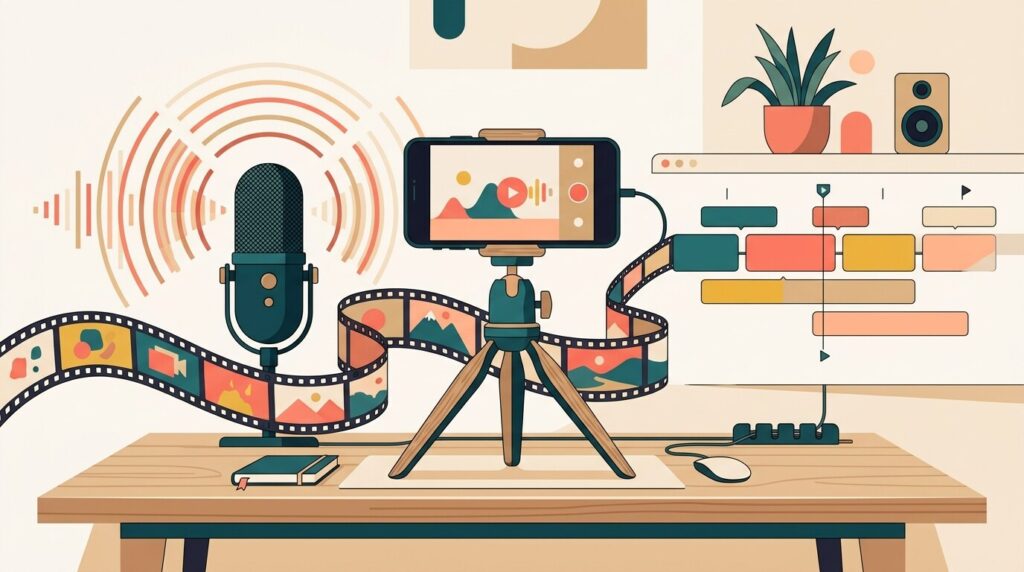
The steps
About 90 minutes · Free plans are enough to start
Draft the script with ChatGPT or Gemini: one message, about 110 Arabic words for 45 seconds, and a five-shot list.
Get the visuals from your own photos and clips, or generate them on a paid Google AI plan; never ask for Arabic text inside a generated shot.
Record the voice-over: Lahajati for a dialect or ElevenLabs for MSA, with tashkeel on ambiguous words and numbers written out.
For an on-screen presenter, try HeyGen: the free plan gives 3 watermarked videos a month; preview the Arabic voice first.
Edit in CapCut: lay the voice down first, cut the shots to it, and keep the music well under the speech.
Add Arabic captions and check right-to-left issues: punctuation, numbers, connected letters and an Arabic-ready font.
Before publishing, check the voice licence for commercial use and set "AI use" to Yes in YouTube Studio if scenes look realistic.




You can now design a short Arabic video with AI, from first idea to a file ready to post, without a camera crew or an editor on payroll. Whether you are an artisan bakery owner showcasing a fresh morning pistachio pastry or an educator explaining a single concept in under a minute, modern tools make it possible to go from a rough idea to a finished, published video for YouTube Shorts, Instagram Reels, or TikTok in just six structured steps.
However, creator expectations must align with platform realities. You can draft an Arabic script, generate synthetic voiceovers, and assemble rough video sequences entirely for free, but the free route has a price: watermarks, small monthly allowances and, for some voice tools, no commercial licence. Our verdict: if the video is for a client or a business, pay for the voice first; everything else can stay free while you learn. Below is a realistic breakdown of what both pathways cost (prices checked on 21 November 2026).
Tired of juggling ten tabs? ToolSuite bundles the AI workflow tools power users rely on — in one place.
Try ToolSuite NowCost: Free vs. Paid Route
| Production Phase | Free Pathway (Testing & Personal Use) | Paid Pathway (Commercial & Client-Ready) |
|---|---|---|
| Scriptwriting | $0 using free tiers of ChatGPT or Gemini. | $0 (free LLM tiers remain fully adequate for 45-second scripts). |
| Visual Generation | $0 using your own phone footage or photos. Video generation in the Gemini app needs a paid plan. | Google AI subscriptions (gemini.google/subscriptions) offering Google Flow credits, or third-party clip creators. |
| Arabic Voiceover | $0 with ElevenLabs (10k credits/month, personal use only) or Lahajati (10,000 points/month, limited dialects). | ElevenLabs Starter at $6/month or $5/month billed yearly (elevenlabs.io/pricing) for commercial rights, or Lahajati Beginning plan at $6 one-time payment (lahajati.ai/pricing). |
| AI Presenter / Avatar | $0 with HeyGen Free tier (3 watermarked videos/month, up to 1 minute each). | HeyGen Creator plan at $29/month billed monthly, less on yearly billing (heygen.com/pricing), adds 1080p export. |
| Editing & Captions | $0 with CapCut free auto-captions (capcut.com; test Arabic first) or YouTube Studio. | CapCut’s paid tier not checked; premium styling with Submagic from $19/month or $12/month billed yearly (submagic.co/pricing). |
| Licensing & Export | Watermarks on HeyGen; no commercial licence on ElevenLabs Free. | Read each tool’s licence; ElevenLabs’ commercial licence starts at Starter. |
Step 1: Idea and Script
Every successful short-form video hinges on clarity: one core message, one specific target audience, and one unambiguous call to action. Attempting to explain multiple concepts across a 30-to-60-second window overwhelms viewers and muddles your video generation prompts. For this walkthrough, imagine an artisan bakery announcing a new, freshly baked pistachio morning pastry to local food lovers, directing them to visit before noon.
As a rough guide, about 110 Arabic words fill 45 seconds at a comfortable spoken pace. Much more than that and the voice has to rush. Direct your language model to produce a five-scene shot list, allocating 8 to 10 seconds per shot, and explicitly separating spoken narration from on-screen visual directions.
Actionable Prompt for ChatGPT or Gemini:
“Act as a professional Arabic video producer. Write a 45-second promotional video script in Modern Standard Arabic (or Egyptian dialect) for a local artisanal bakery announcing a new morning pistachio croissant. The total spoken text must not exceed 110 Arabic words. Divide the script into exactly 5 visual scenes lasting 8 to 10 seconds each. For each scene, provide: (1) the exact spoken voiceover text with full diacritics (tashkeel) on ambiguous words, (2) a descriptive visual generation prompt written in English describing the camera angle, subject, and cinematic lighting without any text, and (3) a short on-screen text phrase in Arabic of 2 to 4 words. Keep spoken text distinct from on-screen text.”
Before moving forward, finalize your linguistic direction: decide firmly between Modern Standard Arabic (الفصحى – MSA) and a regional spoken dialect (such as Egyptian, Saudi, or Levantine). This decision governs your entire production pipeline, particularly the voice generation tool you must select in Step 3.
Step 2: Generating and Sourcing Video Visuals
Once your shot list is established, you have three distinct methods to assemble the underlying video footage. You can review broader strategic context in our video creation section, but practically speaking, your options break down into three routes:
Route A: Animating Original Photos (The Most Reliable Route). For local businesses and creators with physical products, animating real photographs taken on a smartphone is the most authentic, cost-effective method. Rather than generating synthetic food or products that look artificial, animate your still images into moving b-roll. For detailed guidance on panning, lighting, and camera motions, consult our comprehensive guide on creating a professional video from photos.
Route B: Pure AI Video Clip Generation. If you require cinematic concept visuals that cannot be filmed locally, use dedicated clip generators. In the Gemini ecosystem, video generation requires a paid tier. As noted on the official Gemini video generation overview, users must upgrade to access Gemini Omni, which is replacing Google Veo inside the Gemini app. Gemini Omni produces 10-second video clips, and every clip automatically incorporates an invisible SynthID watermark for provenance. For multi-shot studio orchestration, Google AI subscriptions (gemini.google/subscriptions) provide access to Google Flow (powered by Gemini Omni Flash), distributing 200 Flow credits on Google AI Plus, 1,000 on Google AI Pro, and 10,000 or 25,000 on Google AI Ultra. The page does not say how many credits one clip uses, so check after your first render. Third-party generators like Runway and Hailuo are widely referenced alternative clip generators; you can compare capabilities in our Runway vs Kling comparison guide. Hailuo’s pricing page loads in the browser and we could not read it, so we give no figures for it.
Route C: Digital Presenter / Avatar. If your explainer relies on a talking head rather than b-roll, a digital avatar provides an all-in-one visual and vocal solution, detailed in Step 3.
The Cardinal Rule of Arabic AI Video Generation: When prompting video models like Gemini Omni, Runway, or Hailuo, write your scene descriptions in English or Arabic, but never ask the generator to render Arabic typography, signs, or text inside the video frame. Arabic letters in generated footage often come out broken, reversed or disconnected. Generate entirely clean, text-free visual footage, and overlay all Arabic titles later in your timeline editor.
Step 3: Arabic Voiceover and Presenter Audio
Audio quality defines professional perception: viewers will forgive imperfect video footage, but robotic or muffled narration destroys credibility. Your audio strategy depends directly on the linguistic choice made in Step 1.
Modern Standard Arabic (MSA) Narration: If your script uses formal MSA, ElevenLabs delivers exceptional inflection and tonal realism. According to the ElevenLabs pricing page, the Free tier provides 10,000 credits per month. However, commercial licensing strictly begins on the Starter plan, which costs $6 per month on monthly billing or $5 per month billed annually. So a free-plan voice is not one to put in client work or a business ad. For an in-depth breakdown of voice features, read our ElevenLabs vs Murf comparison.
Authentic Arabic Regional Dialects: If your promo requires local vernacular—such as Saudi, Egyptian, or Emirati phrasing—generalist English-first voice engines often sound stiff. Lahajati specializes in regional Arabic dialect speech. Based on the Lahajati pricing page, their Free tier includes 10,000 points per month, 10 voice minutes, 30 generations per day, and a strict limit of 1,000 characters per single generation request. Critically, “Access to All Dialects” is excluded from the Free plan. Lahajati’s paid packages operate on one-time payments that never auto-renew; the entry “Beginning” plan showed a promotional $6 at the time of writing, and the paid plans list access to all dialects.
The Digital Presenter Route with HeyGen: If you prefer an on-screen talking presenter, HeyGen merges the visual speaker and voiceover into a unified file. The HeyGen pricing page states that their Free plan grants 3 videos per month, watermarked, up to 1 minute each, including access to their Video Agent and over 500 ready-made presenter avatars. Upgrading to the Creator plan costs $29 per month on monthly billing (with yearly plans discounted with “2 months free”), which adds 1080p export. While HeyGen advertises support for over 175 languages and dialects, the pricing page does not itemize Arabic dialects by name. Always audition and preview the Arabic voice model inside HeyGen’s studio before spending export credits. For comparative analysis against rival avatar engines like Synthesia, see our HeyGen vs Synthesia guide. Ethical Mandate: Never generate an avatar of a living person or colleague without their verifiable consent.
Script Preparation Rules for Arabic Text-to-Speech:
- Apply Tashkeel to Ambiguous Words: Text-to-speech engines cannot deduce context on unvocalized heteronyms (e.g., distinguishing عَمَل from عَمِلَ, or ذَهَب from ذَهَبَ). Place vowel markings on verbs and critical nouns.
- Transcribe Numerals as Words: Write numbers out fully in Arabic text (e.g., write “خمسة عشر” instead of “15”) to avoid bizarre character-by-character pronunciation errors.
- Respect Character Thresholds: On Lahajati Free, scripts longer than 1,000 characters fail to process. Split your script into scene-by-scene sentences, generate individual audio stems, and sequence them in the editor.
Step 4: Assembling the Timeline in CapCut
Generators don’t replace the editor: this is where the video gets its rhythm, and the order that works is audio first. For rapid social assembly, desktop or mobile versions of CapCut provide an efficient workspace.
Canvas Configuration: Select your canvas aspect ratio prior to dropping footage. Choose 9:16 vertical (1080×1920) for TikTok, Instagram Reels, and YouTube Shorts. Choose 16:9 widescreen (1920×1080) for conventional horizontal YouTube explainers. Avoid mixing canvas orientations mid-project.
The Audio-First Assembly Method:
- Lay Down the Voiceover First: Drag your ElevenLabs, Lahajati, or HeyGen audio track onto the primary audio lane. Trim unwanted breaths or trailing dead air between sentences.
- Align Visuals to Speech Cadence: Place your 10-second Gemini Omni clips, animated photo files, or b-roll on the video track above the voiceover. Slice and ripple-delete clip boundaries so that visual scene changes sync precisely with shifts in the spoken Arabic narration.
- Insert Micro-B-Roll: If an AI clip exhibits minor visual warping toward its conclusion, cut away after 3 to 4 seconds to a tight product shot or macro detail.
- Balance Background Music: Keep the music well below the voice. Arabic relies on subtle guttural and emphatic consonant contrasts (such as ح, خ, ع, and ق); loud background tracks obscure these frequencies and render the speech unintelligible.
Step 5: Arabic Captions, RTL Typography, and On-Screen Text
Many people watch short videos with the sound off, so on-screen text matters. Rendering Arabic text on video timelines introduces notorious Right-to-Left (RTL) technical hurdles.
Subtitle Generation Options: According to the CapCut auto-caption page, automated captions are free and support translation. However, because CapCut’s public feature page does not explicitly publish its complete list of supported languages, you must test Arabic recognition on a 20-second sample clip before committing to a full timeline edit. If CapCut misinterprets your regional vocabulary, YouTube Studio’s automatic captions support Arabic and are a free fallback you can correct before publishing; consult our Arabic video subtitles guide for full workflow details. For creators seeking animated, kinetic subtitle templates, Submagic offers dedicated styling tools starting at $19 per month monthly or $12 per month billed yearly ($144 annually) with a “Try for free” tier (submagic.co/pricing). Note that Submagic’s pricing documentation does not explicitly advertise native Arabic caption support, so do not assume automated Arabic transcription without testing.
Overcoming the Four Major Arabic RTL Pitfalls:
- Reversed Punctuation: Video editors frequently force question marks, exclamation points, and periods to the right side of an Arabic sentence rather than the left. Verify that end-of-sentence punctuation sits at the true reading terminus on the left.
- Disconnected Letters: Non-localized software often renders Arabic letters as separate, isolated blocks rather than flowing cursive scripts (e.g., displaying “ب ك ر ي” instead of “بكري”). If this happens, switch to a font with proper Arabic glyphs and check the editor’s text-direction option.
- Bidirectional Flipping: Mixing English brand names (e.g., “Croissant”) or Western numerals (“2026”) into an Arabic subtitle sentence often corrupts reading order. Separate English brand words or numbers into distinct, independent text layers to preserve correct sentence alignment.
- Font Compatibility: Avoid standard Western decorative fonts that lack Arabic glyphs and trigger ugly fallback typography. Select verified, clean Arabic fonts such as Cairo, Tajawal, Almarai, or Noto Sans Arabic.
Step 6: Export, Compliance, and Publishing
The last step is verifying export quality, licensing compliance, and platform disclosure rules before distributing your video file.
Licensing and Watermark Verification: Inspect your exported MP4 file. If you used free tiers of HeyGen, a visible vendor logo appears in the corner; ensure it does not obstruct your Arabic subtitles. More importantly, verify your commercial rights: if you produced an advertisement for a paying client or registered business, confirm that your voiceover was exported from an ElevenLabs Starter tier or higher, or a paid Lahajati package. Free-plan voice without a commercial licence does not belong in a paid campaign.
Mandatory YouTube AI Disclosure: Major video platforms enforce strict disclosure requirements for synthetic media. Under the official YouTube Help disclosure policy, creators are required to disclose altered or synthetic content that appears realistic—specifically content depicting “a realistic scene that didn’t actually occur.” When you upload in YouTube Studio, go to the Attributes section and, under “AI use”, select “Yes”. YouTube then labels the video as AI-generated or altered.
Project Asset Archiving: Store your raw Arabic script, your vocalized phonetic text, your text-to-speech WAV files, and your original video prompt strings in a dedicated folder. If a social client requests a minor revision or a translation from MSA into an Egyptian dialect, having clean asset stems allows you to re-render individual segments in minutes without restarting your entire production from scratch.
Final Pre-Publishing Checklist
- Script Pacing & Tashkeel: Spoken script stays near ~110 Arabic words for a 45-second duration, with ambiguous verbs vocalized with diacritics and all numbers written out as complete words.
- Visual Integrity: Timeline canvas locked to 9:16 (vertical) or 16:9 (horizontal); raw AI-generated clips are completely free of garbled, in-video synthetic Arabic lettering.
- Audio Clearance: Voiceover licensing confirmed for commercial use (ElevenLabs Starter $6/mo or Lahajati Beginning $6 one-time plan if publishing an advertisement); background music low enough that every consonant is clear.
- RTL Typography Check: Captions display connected cursive script with Arabic-compatible fonts (e.g., Cairo, Tajawal), punctuation positioned correctly on the left, and no reversed numbers.
- Platform Disclosure: YouTube Studio “AI use” attribute toggled to “Yes” for synthetic realistic footage, and complete asset prompts archived for future iterations.











Comments
0No comments yet.
Please log in to comment.
Comments are available for members only. Sign in to participate in the discussion, or create a new account for free.